What Is a Fashion AI Video?
A fashion AI video is a short-form video clip — typically 9:16, 5–15 seconds — generated from a still photograph of a garment. The AI fits the garment to a virtual model, animates the result with realistic movement, and renders the final output in broadcast-quality format ready for TikTok, Instagram Reels, or your product pages.
The technology has matured rapidly. Where early tools produced flickering, deformed outputs, modern systems like Drape maintain garment fidelity across every frame — preserving collar shape, seam placement, and fabric texture through motion. The practical result is content that is visually indistinguishable from a studio shoot at a fraction of the time and cost.
This guide walks you through the exact steps to create your first fashion AI video on Drape — from preparing your garment photo to exporting a finished clip. The entire process takes under 10 minutes once you know the workflow.
What You Need Before You Start
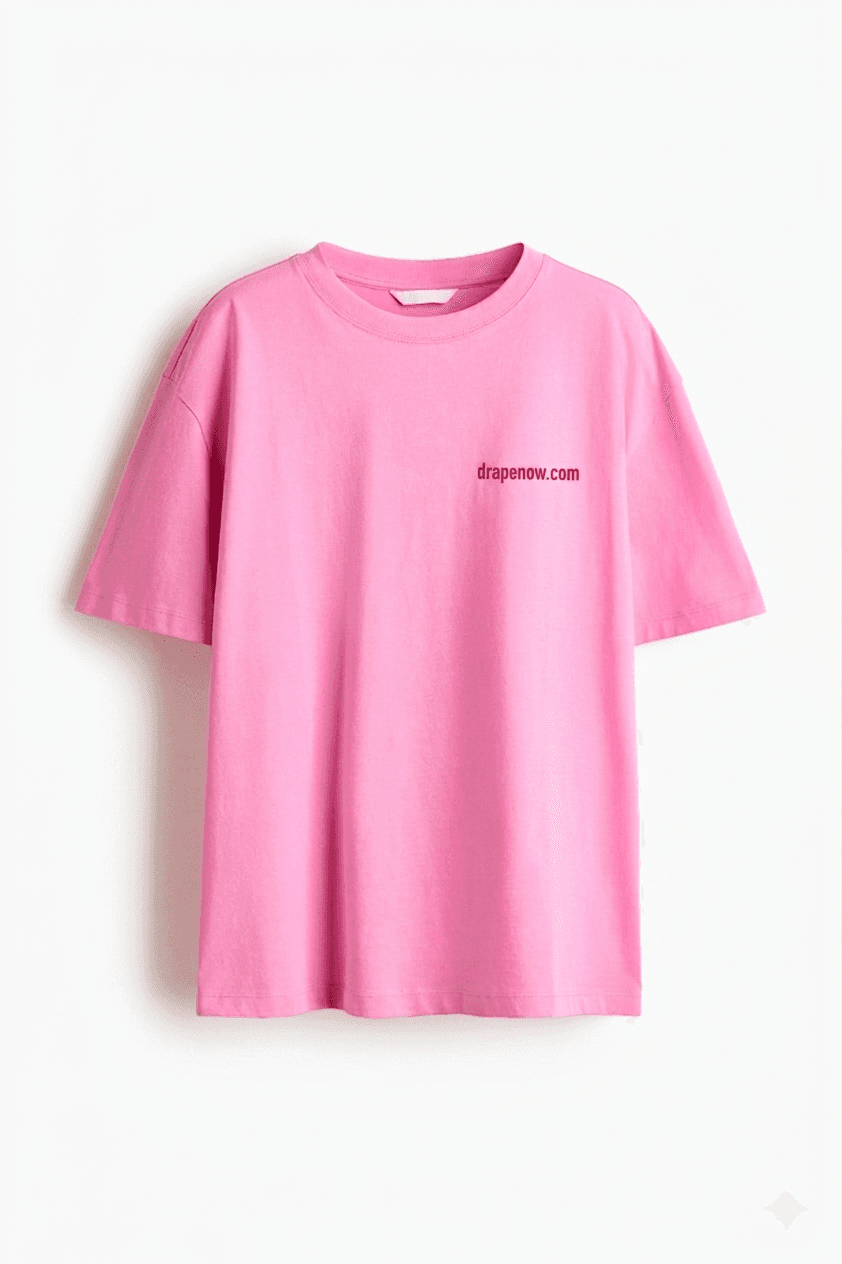
The only input Drape requires is a photograph of your garment. You don't need a professional camera, a studio, or a model. But the quality of that photograph directly determines the quality of your output — so it's worth getting this step right before you open the platform.
Photograph your garment on a flat surface with a white, off-white, or neutral grey background. Natural diffused light (near a window, not direct sunlight) is ideal — it preserves texture without harsh shadows. Portrait mode on a modern smartphone camera gives you more than enough resolution.
A few things to avoid: direct flash (it flattens fabric texture), busy backgrounds (the AI needs to isolate the garment cleanly), and heavy wrinkles (the AI renders what it sees). Steam the garment before shooting. The 5 minutes you spend here saves you regenerations later.
Acceptable formats: JPG, PNG, WEBP. The garment should fill at least 60% of the frame. Accessories and hangers should be removed where possible — they can confuse the segmentation step and produce artifacts in the final video.
Step 1: Upload Your Garment Photo
Log into your Drape account and click 'Create' in the top navigation. You'll land on a three-step wizard: garment upload, model and style selection, and prompt. Start by clicking the garment upload area or dragging your file directly into the browser window.
Once uploaded, the platform automatically segments the garment — you'll see it isolated against a neutral background in the preview. Review this preview carefully: the segmentation determines what gets rendered. If the background wasn't neutral enough, the edges may appear ragged. In that case, re-photograph on a cleaner background rather than proceeding with a noisy segmentation.
If you have multiple colorways of the same garment, upload each as a separate project — the AI treats each image as a distinct input. Attempting to render multiple colorways from one image will blend them unpredictably.
One common mistake at this stage: uploading a lifestyle photo (garment worn by a real model) instead of a flat-lay or product shot. The AI is designed to generate a new video from a garment reference, not to reproduce an existing styled photo. A plain garment image gives the AI the most creative latitude and consistently produces the best outputs.
Step 2: Choose a Model and Visual Style
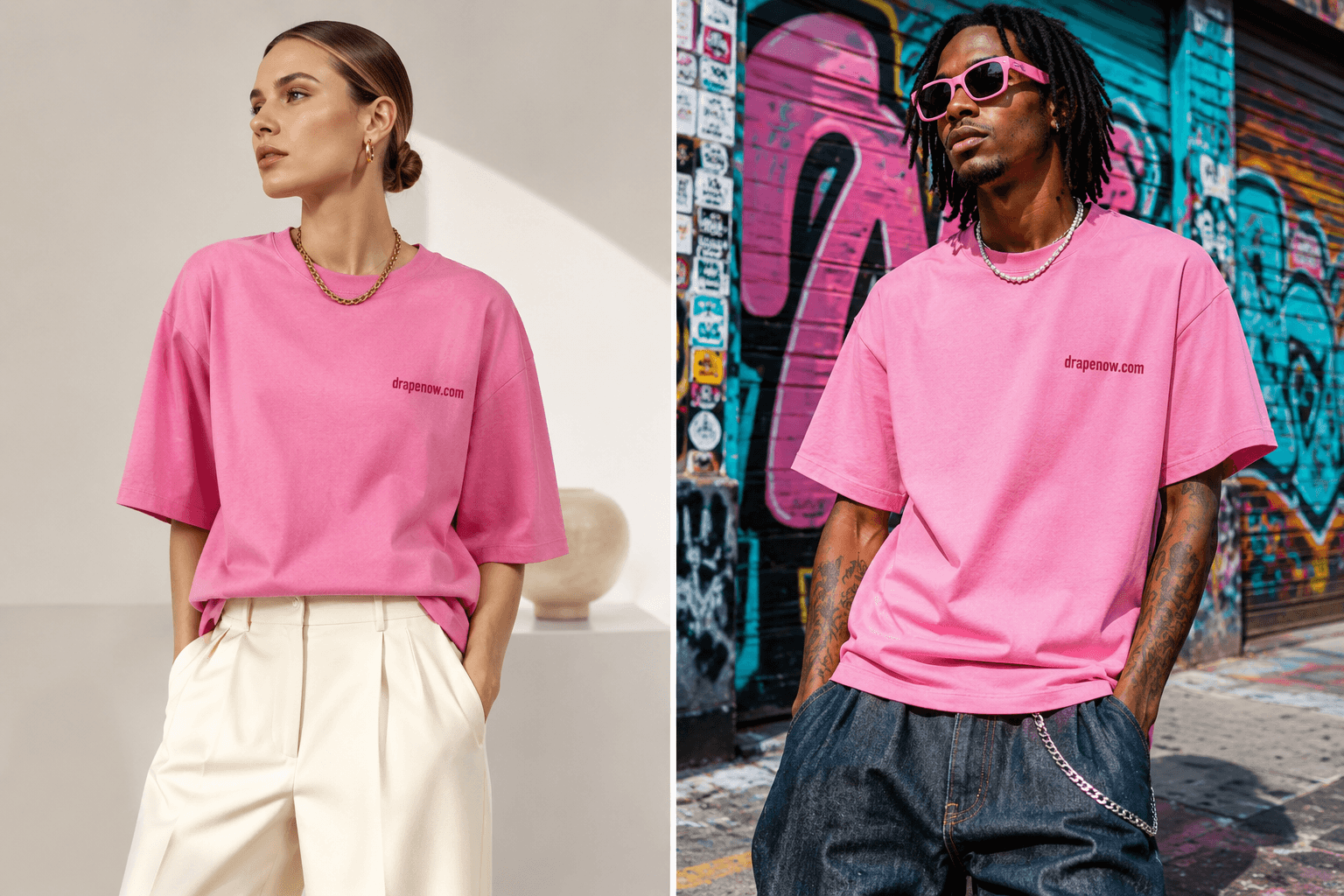
This is where creative direction happens. After uploading your garment, Drape presents a selection of virtual model silhouettes — ranging across body types, heights, and skin tones — along with a library of visual style presets.
The style presets are the single biggest lever on how your final video looks and feels. They're not filters applied after rendering — they're conditioning parameters that shape the entire generation. 'Cinematic Wide' produces a 24mm-lens-style shot with cinematic depth of field. 'Silk Elegance' renders with soft, high-key lighting suited to luxury positioning. 'Neon Pulse' produces high-contrast, saturated outputs built for streetwear brands. 'Editorial Stark' uses harsh shadow and minimalist composition.
Match your style to your brand positioning, not just your personal aesthetic preference. A minimalist luxury label should use Silk Elegance or Editorial Stark. A Gen Z streetwear brand should use Neon Pulse or Street Energy. Getting this right on the first attempt saves you credits and produces a more cohesive output that actually fits your feed.
If you're unsure which preset to start with, look at your most-engaged recent Instagram posts. What's the lighting? What's the mood? Find the style preset that most closely matches what's already working for your audience, then use that as your default for the entire catalog.
Step 3: Write Your Prompt
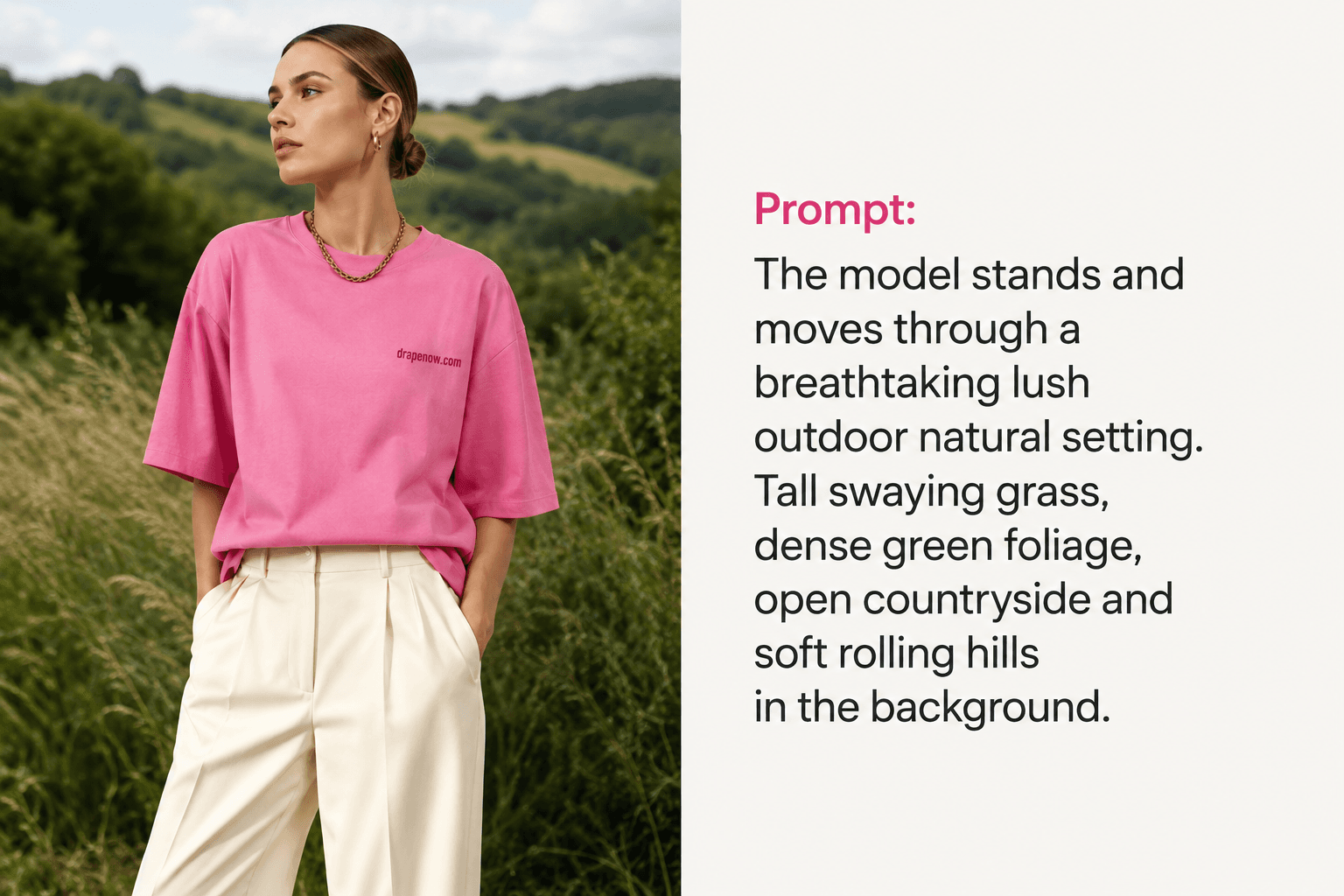
The prompt is optional but powerful. Even a short, specific prompt changes the output meaningfully — it steers the composition, setting, and energy of the video beyond what the style preset alone determines.
Think of the prompt as giving the AI a brief. It works best when it describes context and mood rather than technical instructions. 'Outdoor rooftop, golden hour, editorial slow-pan' is effective. 'Make the video look good' is not.
Here are proven prompt examples by use case: 'Outdoor golden hour, movement, lifestyle feel' — warm, natural-light video suited to spring/summer collections. 'Studio, harsh directional light, clean white floor' — high-contrast editorial suited to minimalist brands and product pages. 'City street, night, neon lights, confident walk' — street-style energy suited to casual and streetwear brands. 'Slow motion pan, silk draping, luxury hotel corridor' — premium slow-motion suited to eveningwear and luxury positioning.
Keep prompts concise — 10–20 words is usually optimal. Longer prompts introduce conflicting signals and produce less predictable results. Once you find prompts that work for your brand, save them as a prompt library. Five to ten tested prompts cover most of your catalog production needs.
Step 4: Generate, Review, and Export
Click 'Generate' to submit your project. Processing typically takes two to five minutes. The dashboard shows a live progress indicator — you don't need to stay on the page. The video is delivered to your dashboard when ready.
When the video loads, review it in three passes. First: garment fidelity. Does the neckline, collar, and silhouette match your physical garment? Check sleeve length and hem position. If a structural detail is off, a single regeneration usually corrects it — the generation process has variance, and the second pass typically resolves details the first approximated.
Second: motion and temporal consistency. Play the clip at least twice. Does the fabric move naturally? Is there any flickering between frames or garment deformation at peak motion? If yes, try a slightly simpler prompt on regeneration — complex prompts occasionally push the model into compositional territory that compromises frame-to-frame coherence.
Third: creative match. Does the output fit your brand aesthetic and the style intent you set in Step 2? This is a subjective check — trust your eye. Once satisfied, click 'Export'. The download is a full-resolution MP4 in 9:16 format at 24fps or higher — no watermark, no re-encoding required, commercial rights included. It's ready to upload directly to TikTok, Instagram Reels, YouTube Shorts, or your product page video player.